How to Set Up Your Own AI Assistant with OpenClaw in 5 Minutes
A step-by-step guide to installing and configuring OpenClaw, the open-source self-hosted AI assistant that works with WhatsApp, Telegram, Slack, Discord, and more.
Posted by
 Moltbot Team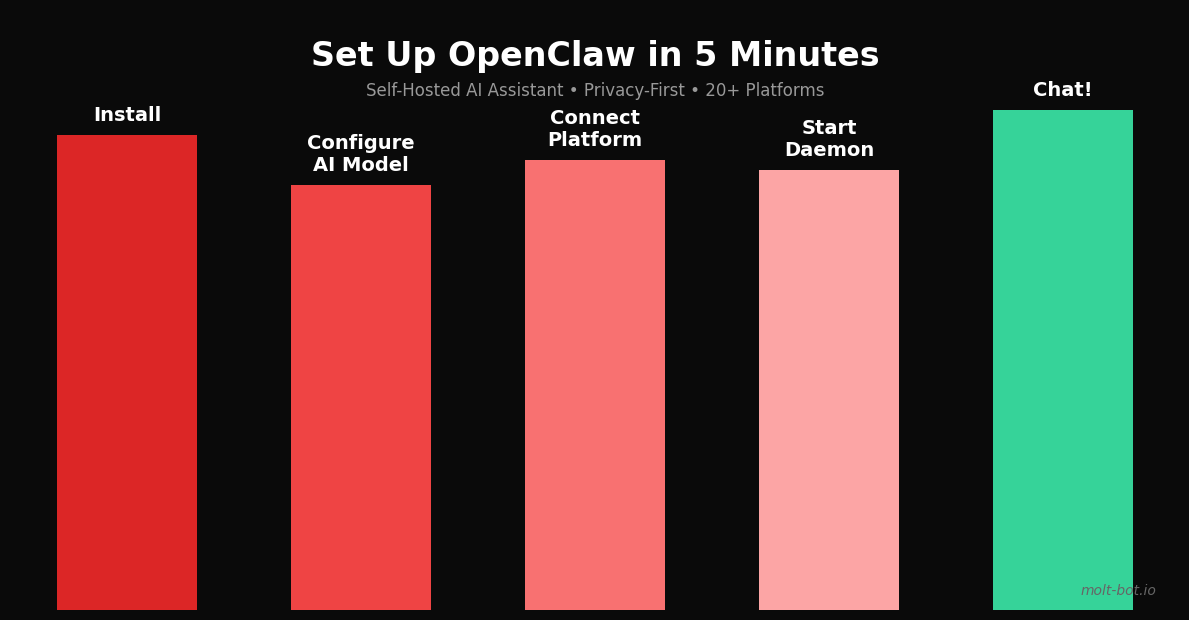
Why run your own AI assistant?
Most AI assistant products send your conversations to third-party servers. That's fine for casual use, but it's a real problem if you're discussing business details, personal health information, or anything you'd rather keep private.
OpenClaw (the engine behind Moltbot) flips that model around. Everything runs on your own machine or a server you control. Your messages never leave your infrastructure, and you pick which AI model does the thinking — Claude, GPT-4o, Gemini, or a fully offline Ollama model. The setup takes about five minutes, and this guide will walk you through every step.
What you'll need
- Node.js 18 or newer (check with node -v)
- An API key for at least one AI provider — Anthropic, OpenAI, Google, or a local Ollama instance
- A messaging platform account you want to connect (WhatsApp, Telegram, Slack, Discord, or Signal)
- About 5 minutes and a terminal window
Step 1 — Install OpenClaw
The quickest path is the official npm package. Run this in any terminal:
npx openclaw@latestThis pulls the latest stable release, runs an interactive first-launch wizard, and drops a config file in~/.openclaw/config.yaml. No global installation required — but if you'd rather have the openclaw command always available, do:
npm install -g openclawStep 2 — Configure your AI model
Open ~/.openclaw/config.yaml in your editor. The model section is where you tell OpenClaw which AI backend to use. Here are the four supported options:
Anthropic Claude
model:
  provider: anthropic
  name: claude-sonnet-4-5
  api_key: sk-ant-xxxxxxxxxxxxxxxx
OpenAI GPT
model:
  provider: openai
  name: gpt-4o
  api_key: sk-xxxxxxxxxxxxxxxx
Google Gemini
model:
  provider: google
  name: gemini-1.5-pro
  api_key: AIzaSyxxxxxxxxxxxxxxxx
Ollama (fully offline)
model:
  provider: ollama
  name: llama3
  base_url: http://localhost:11434
The Ollama option means zero data ever leaves your machine — ideal for air-gapped environments or anyone who wants complete privacy without relying on any external API.
Step 3 — Connect a messaging platform
OpenClaw supports five platforms out of the box. Run the onboarding command and follow the prompts for whichever one you use:
openclaw onboard --install-daemonThe --install-daemon flag registers OpenClaw as a background service so it starts automatically on login. You won't have to remember to launch it manually.
The onboarding wizard prints a QR code in your terminal. Scan it with WhatsApp on your phone (Settings → Linked Devices → Link a Device). That's it — from that point any message you send to yourself or a special OpenClaw contact gets routed through your local instance.
Telegram
Create a bot via @BotFather, copy the token, and paste it when the wizard asks. Your bot runs on your own server, not on Telegram's infrastructure.
Slack
You'll need to create a Slack App in your workspace and grant it the chat:write and app_mentions:read scopes. The onboarding wizard walks you through each permission screen.
Discord
Create a Discord Application in the Developer Portal, grab the bot token, and invite the bot to your server with the “Send Messages” permission. The wizard handles the OAuth URL generation for you.
Signal
Signal support uses the signal-cli bridge. The wizard checks whether signal-cli is installed and registers a secondary device linked to your existing Signal account.
Step 4 — Start the daemon and test it
If you used --install-daemon above, the service is already running. Otherwise start it manually:
openclaw startSend a message on whichever platform you configured — something like “Hello, are you there?” — and you should get a reply within a couple of seconds. Check the logs if something's silent:
openclaw logs --tail 50Useful configuration options
A few settings worth knowing about in config.yaml:
- memory.enabled: true — gives the assistant a persistent memory across conversations, stored locally as a SQLite file
- system_prompt — set a custom persona or standing instructions (e.g., “Always reply in Spanish” or “You are a coding assistant”)
- rate_limit.messages_per_minute: 20 — prevents runaway API spend if a chat thread goes haywire
- platforms — you can connect multiple platforms simultaneously; just add more entries under this key
Switching models on the fly
You don't have to commit to one AI model forever. You can swap the provider and model name in config.yaml and restart the daemon:
openclaw restartThis is handy when you want to run a cheap fast model (like Gemini Flash or GPT-4o mini) for everyday questions and switch to a more capable model (Claude Opus or GPT-4o) for complex tasks.
Wrapping up
That's the full openclaw setup from scratch to a running, self-hosted AI assistant on your own machine. The key advantages over hosted alternatives:
- Your conversations stay on infrastructure you control
- Freedom to switch AI models without migrating your setup
- Works inside the apps you already use — no new app to install
- Full offline capability with Ollama
If you run into any trouble, the GitHub repository has issue templates and an active community. Happy self-hosting.